
As part of Talk to Loop’s commitment to continuously improve the platform, and promote greater engagement for both the affected populations and the organisations that support them, we have introduced a new feature called Preset Filters. This feature is designed to help organisations organise and manage their feedback more effectively. This document explains how this feature works:
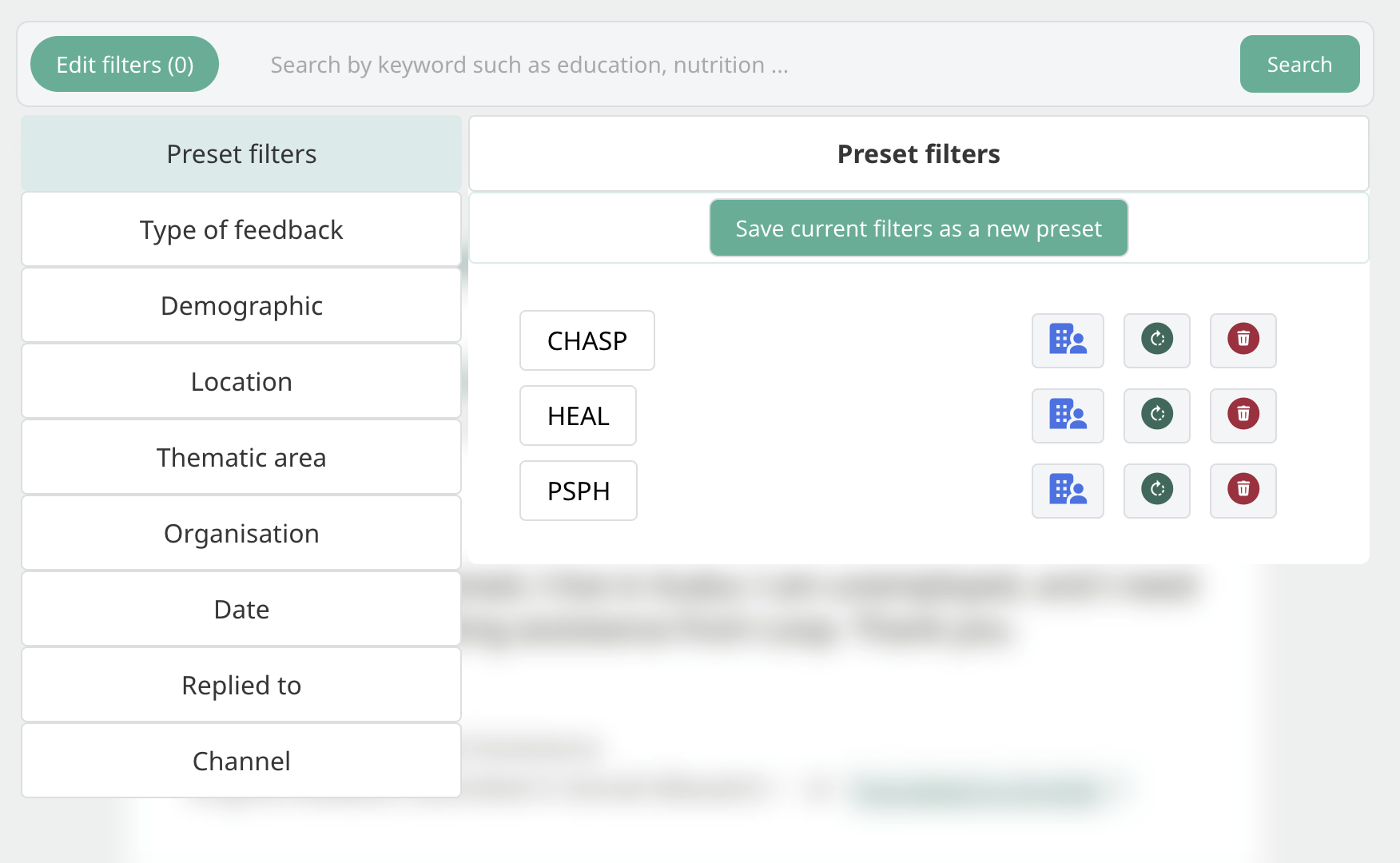
Up until now organisations have relied on browsing the one feedback page on the Loop platform, in order to find the feedback relevant to them, whether it’s to provide solutions to the feedback authors, or to get a sense of the sentiment communities on the ground have regarding a given project or area they are interested in. The search for feedback has been facilitated by the various filters available. This approach was a one size fits all solution, enabling anyone to assess all of the data coming in and to see how their specific feedback compared. However, we learnt that organisations and stakeholders want to go directly to the relevant data for them. Having to input specific filters each time was seen as a friction point and therefore was a barrier to engage with the community data on Loop.
With Preset Filters, people can save any specific set of filters, relevant to them, under a name that’s relevant to them given the context they work in. These preset filters can then be shared across an organisation, so anyone clicking on the link is taken directly to the same filtered data as the next team member, consistently.
One use case for this, is for organisations that wish to group feedback according to the projects their organisation hosts. Assuming projects are isolated to a given geographic location, and certain thematic areas (mental health, shelter, child protection…), those filters can be selected, then saved into a Preset Filter to come back to later or to share with colleagues.
Step one: start by visiting the Talk to Loop Feedback Feed page where all the published feedback can be found. From there choose the filters that correspond to one of your organisational interest areas: projects, programs, consortia etc.
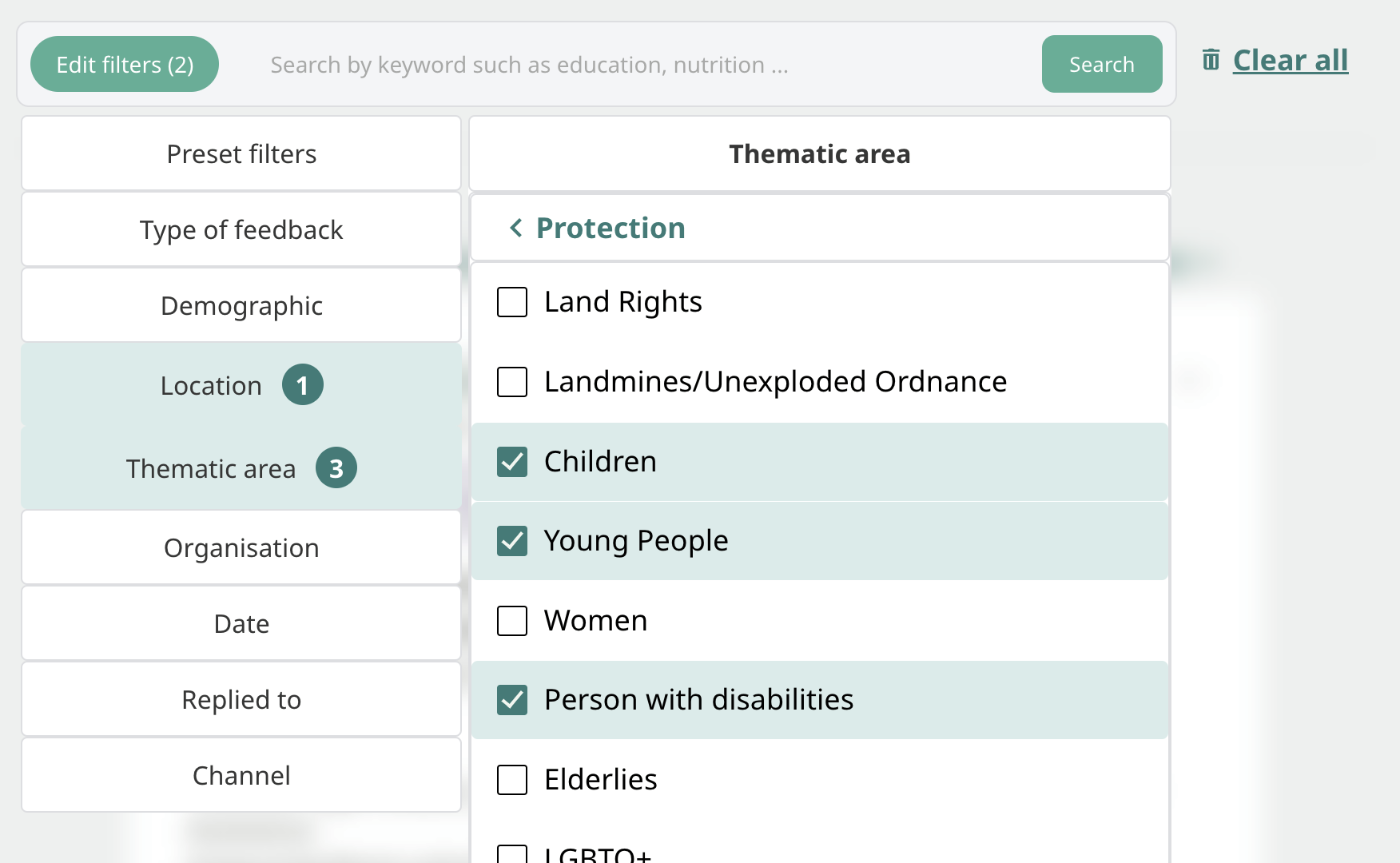
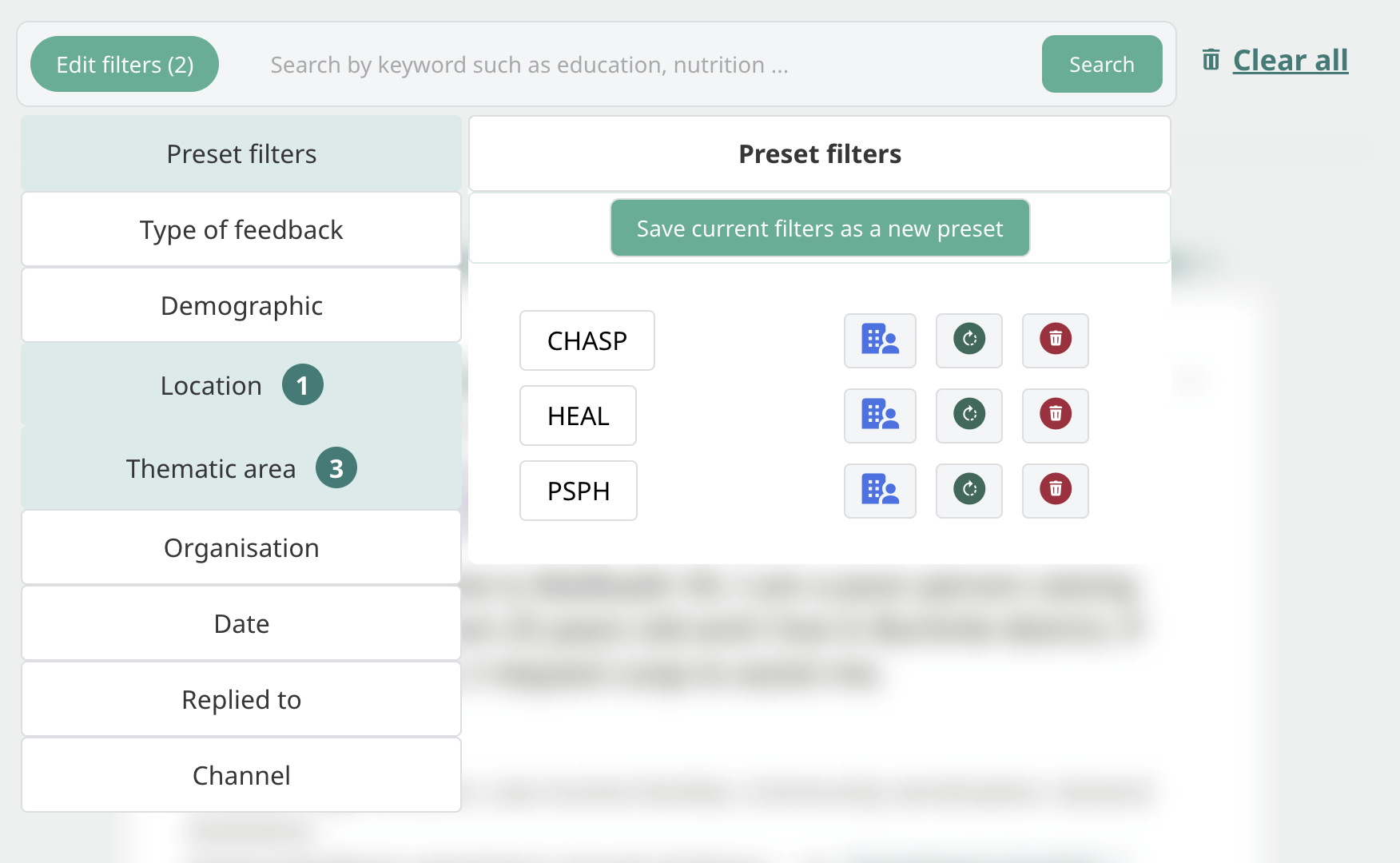
Step two: head to the Preset filters tab within the filter options and click “Save current filters as a new preset”
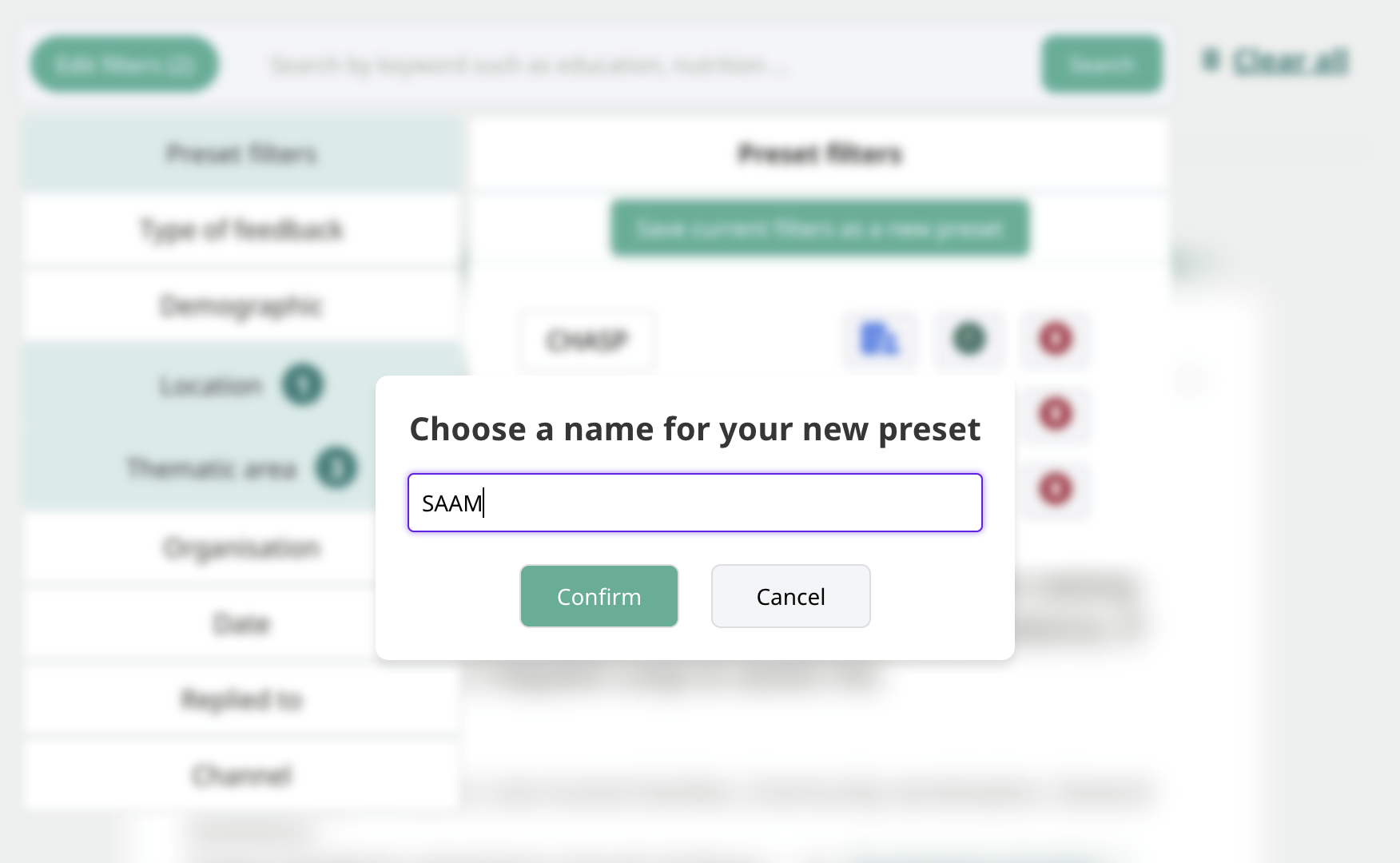
Step three: You’ll be prompted to choose a name for the preset filter in question. After typing in the name, and clicking “confirm”, the preset will be saved to your personal account.
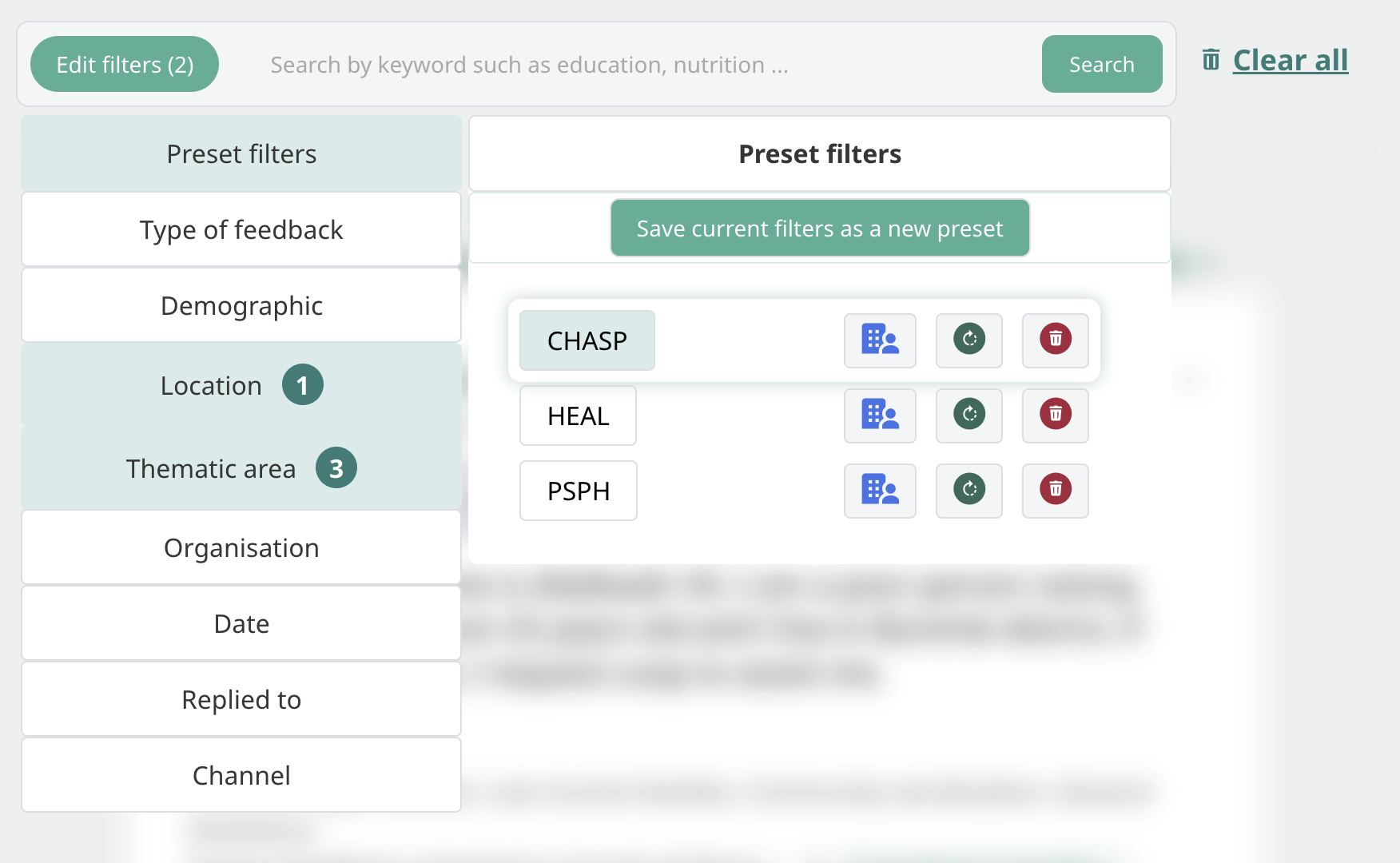
After having created the preset, it can be accessed easily by going to the Preset filter tab within the filter options, then clicking on the name of the preset filter relevant to you. You can have multiple different preset filters in this drop down (as shown below). This will override the current filters, with the ones that were set when the preset filter was created:
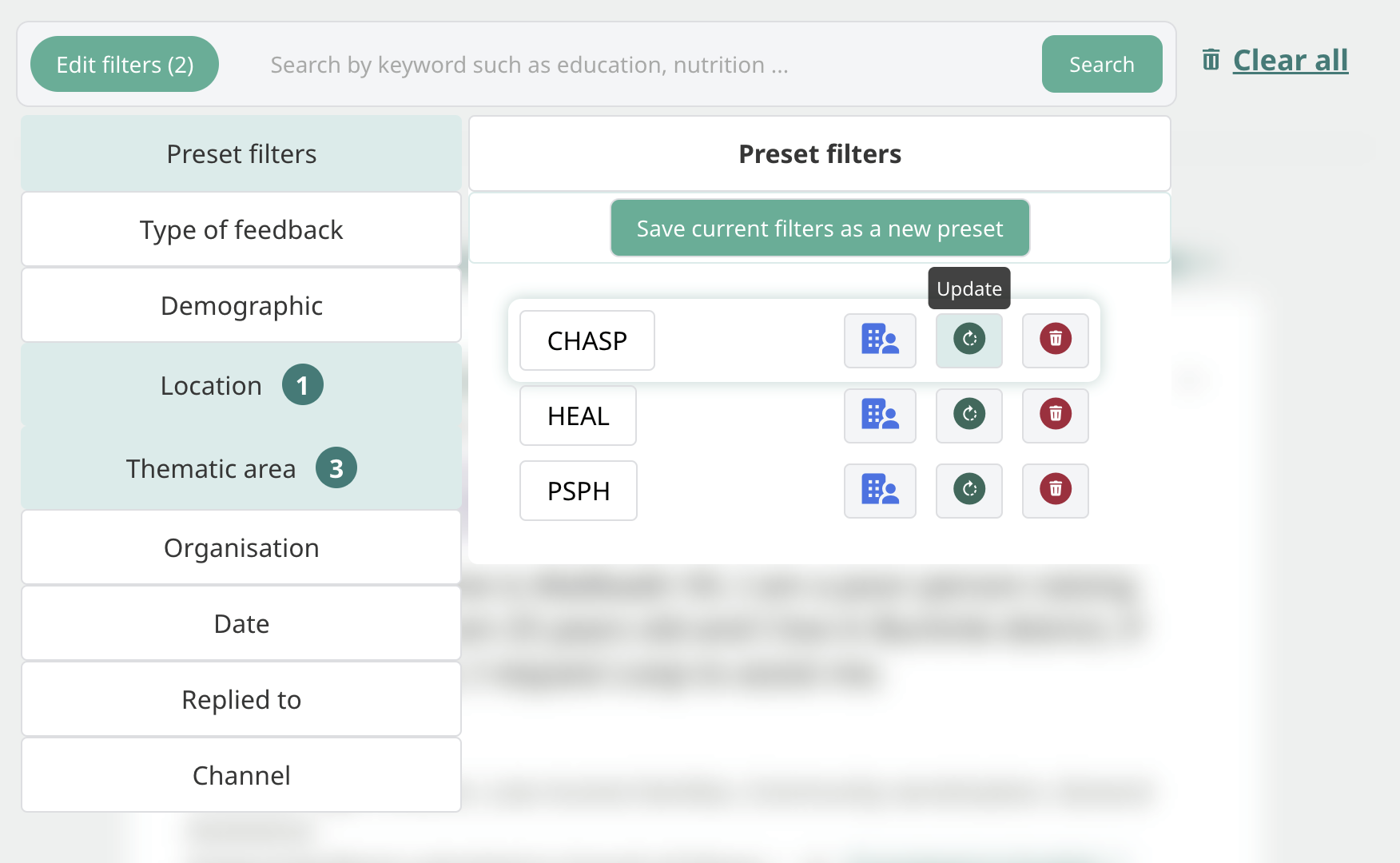
To change the filters associated with a preset, simply select the new filters, then click the “Update” button, next to the preset filter you’d like to update:
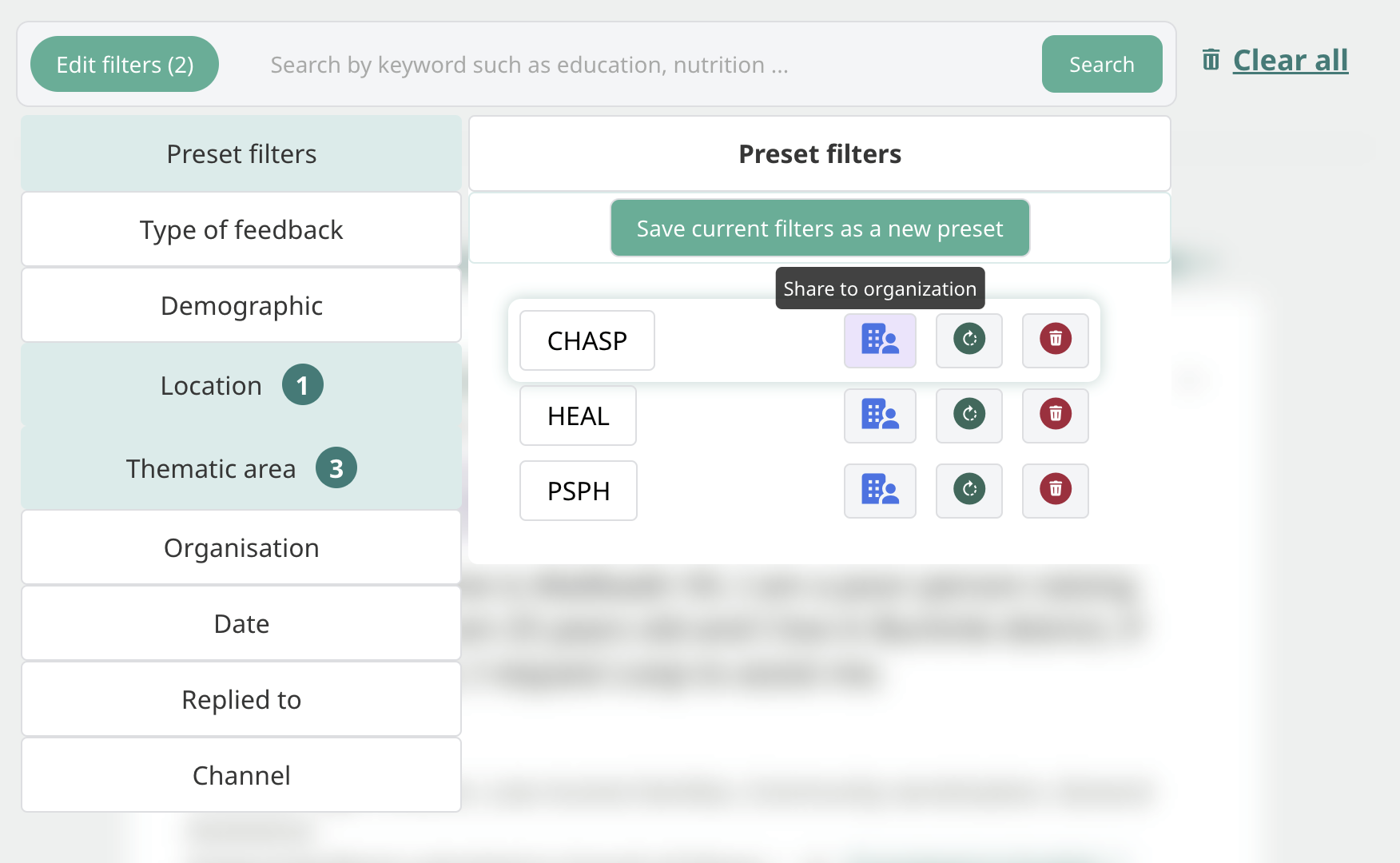
Assuming your colleagues also have a Talk to Loop account, and are part of the same organization as you, you can share the preset filters you create with your entire organisation by clicking the the “share to organization” button next to the preset filter’s name:
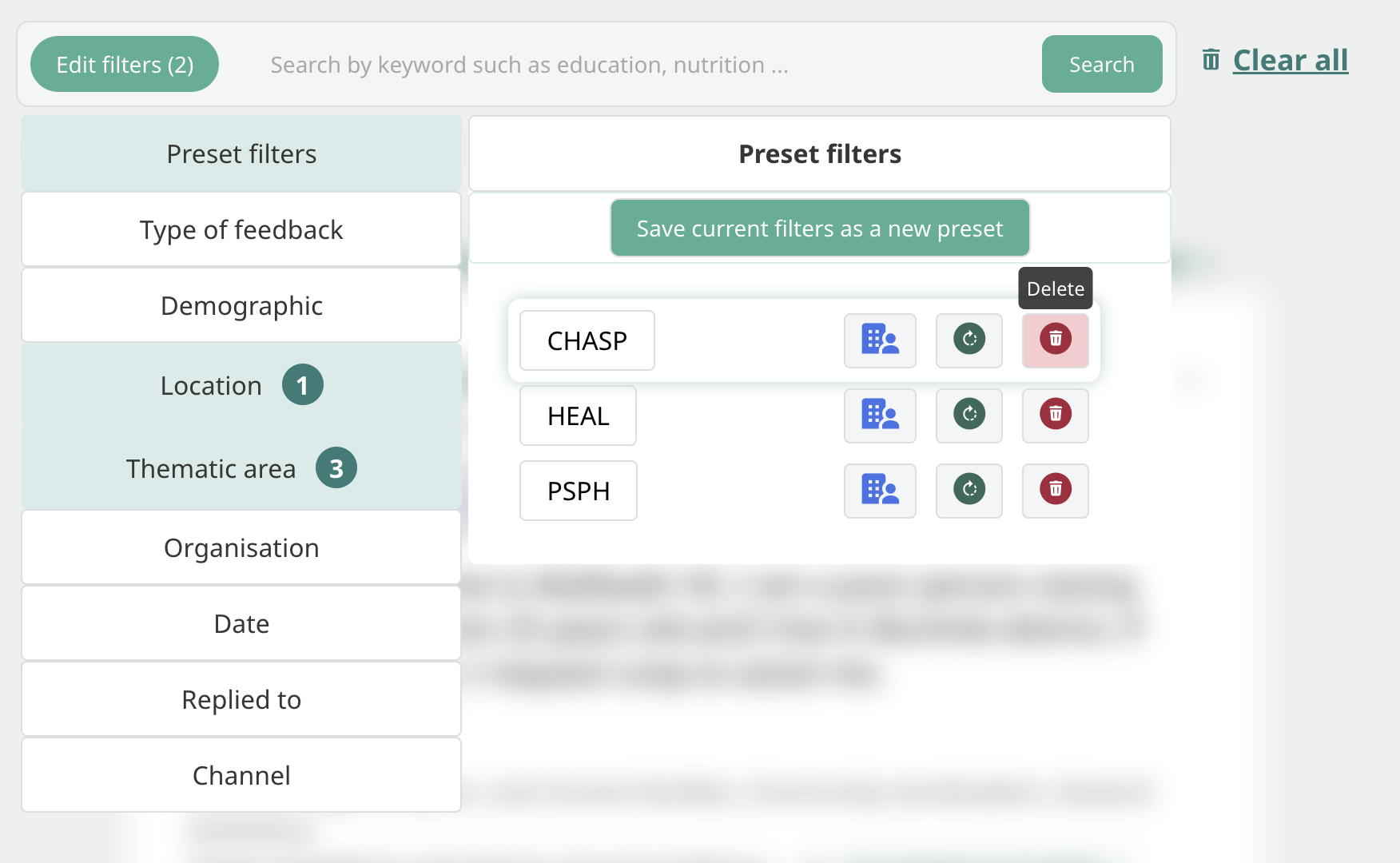
To delete one of the Preset Filters from your personal account, head to the Preset Filters Tab within the filter options, and click the “Delete” button next to the Preset Filter’s name.
Deleting a Preset Filter will only delete it from your personal account. This means that your colleagues will continue to access the Preset Filter if you had shared it with them. Deleting a Preset Filter cannot be undone.
If you have any doubts or suggestions you can reach us at hello@talktoloop.org.